Apps like Badge and ISS need Wi-Fi. Your badge comes set up for the HYB-26 network in the Hack Your Badge area, so it works there straight away. When you leave that area, or once you get home, point it at a different network.
Which networks work?
The badge’s radio only supports 2.4 GHz Wi-Fi. The main conference network prefers 5 GHz, so the badge can’t connect to it.
Good options are:
- Hack Your Badge (HYB-26): already configured, nothing to do.
- Your home Wi-Fi: most routers broadcast a 2.4 GHz network alongside 5 GHz. If yours uses separate names, pick the 2.4 GHz one.
- Your phone’s hotspot:
- iPhone: go to Settings → Personal Hotspot and turn on Maximize Compatibility.
- Android: in the hotspot settings, set AP band to 2.4 GHz. The wording varies by phone.
Network names and passwords are case-sensitive.
Option 1: Use the Settings app
-
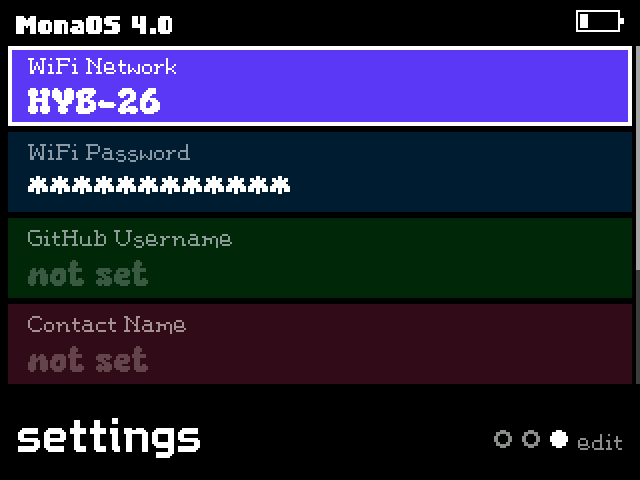
Open Settings from the menu. WiFi Network is highlighted at the top. Press Select (the white circle).
-
Type the network name on the on-screen keyboard. Move with the direction pad and press Select to type the highlighted key. Back deletes a character,
shiftswitches case, and#+=shows symbols. Highlight done and press Select.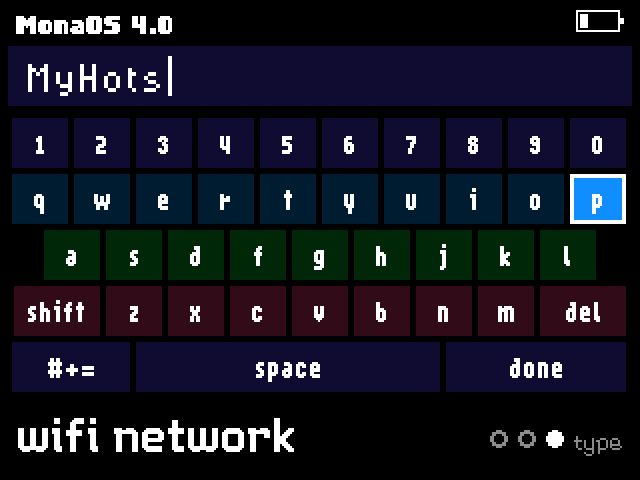
-
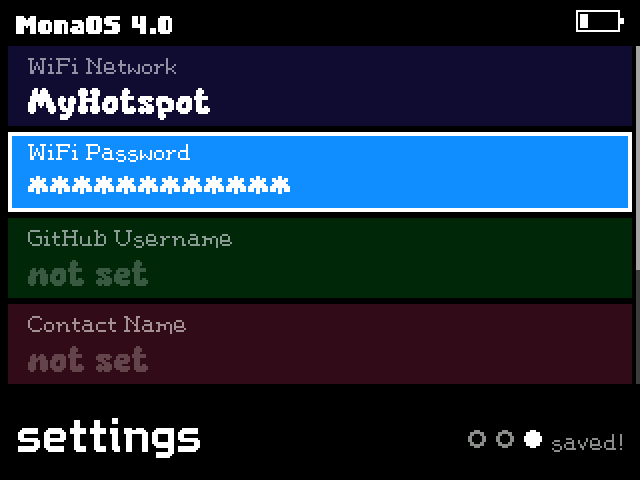
Press Down to highlight WiFi Password, press Select, and type the password the same way. The password is visible while you type and hidden once saved. Choose done. The hint changes to saved!
-
Press Back to leave Settings, then press reset once so the badge reconnects with the new details.
Option 2: Edit secrets.py in VS Code
- Connect the badge to your computer with a USB-C data cable.
- Enter USB mode. Double-tap the badge’s reset button, or open the Mass Storage app from the menu. A drive named BADGER appears on your computer.
- Open the drive in VS Code (
File → Open Folder...and select BADGER) and editsecrets.py:WIFI_SSID = "MyHotspot" WIFI_PASSWORD = "your-password" - Save the file and eject BADGER. The badge restarts automatically. If it doesn’t, press reset once.
Values in secrets.py take priority over the Settings app, and Settings shows them as locked. To edit them on the badge again, set them back to "" in secrets.py.
To switch back to the Hack Your Badge network, set WiFi Network to HYB-26 and ask at the Hack Your Badge station for the password.
Verify
- Open the Badge app. If you’ve configured your GitHub username, your avatar and contribution graph download within a few seconds.
- If you see Couldn’t connect to WiFi, check that:
- the network is 2.4 GHz (or your phone’s hotspot is in 2.4 GHz / compatibility mode),
- the name and password match exactly, including capital letters,
- your phone’s hotspot screen is open, as some phones turn the hotspot off when idle.
Safety tips
secrets.pystores your Wi-Fi password in plain text. Don’t commit your copy to Git or share it.- Always eject BADGER before unplugging the badge, so your changes are saved.