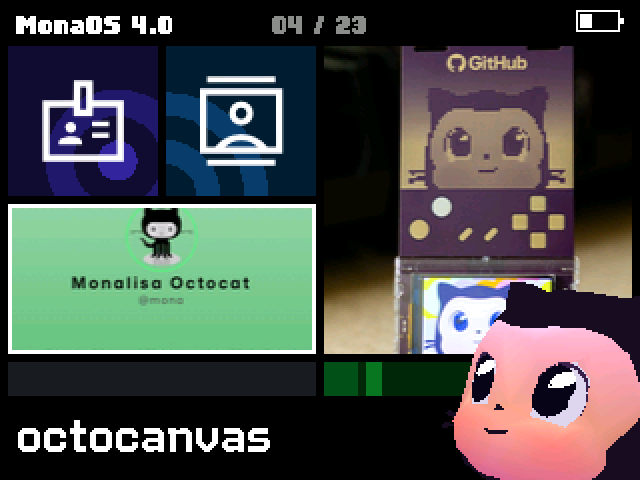
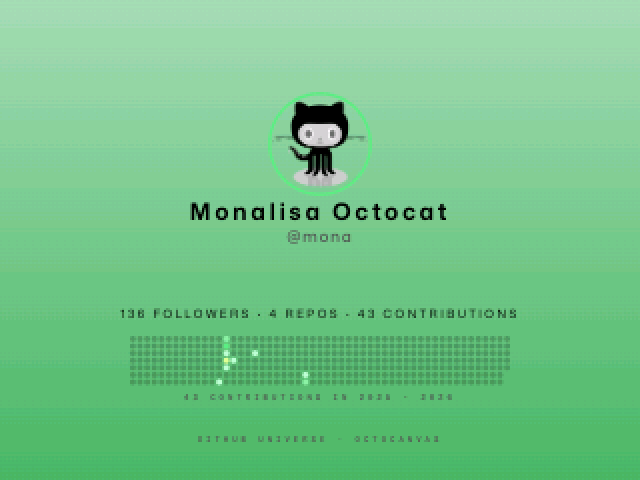
Octocanvas turns your GitHub profile into a wallpaper. It has a badge-sized download, so you can add it to the home screen menu as a wide photo tile that opens full screen.
What you need
- Your badge and a USB-C data cable
- A web browser
- An image editor: Paint on Windows or Preview on a Mac
- VS Code or another text editor
1. Generate the wallpaper
- Open octocanvas.io and stay on the Wallpaper tab.
- Enter your GitHub username and choose Generate.
- Pick an Avatar Filter and a Background Theme.
- Choose Badge (320x240) Download PNG. The file is saved to your Downloads folder as
github-wallpaper-<username>-small.png. - Rename the file to
octocanvas.png. It’s already the right size for the full-screen view.
2. Make the wide tile image (166 × 87)
The menu tile is wider than it is tall, so crop the middle of the wallpaper around your avatar and name.
- Open a copy of
octocanvas.pngin your image editor. - Select a wide box around your avatar and name, about 240 × 126 pixels, and crop to it.
- Windows (Paint): choose Select, drag a box, then choose Crop.
- Mac (Preview): drag a box, then choose Tools → Crop.
- Resize the crop to exactly 166 × 87 pixels.
- Windows (Paint): Resize → Pixels, clear Maintain aspect ratio, and enter 166 and 87.
- Mac (Preview): Tools → Adjust Size, set the units to pixels, clear Scale proportionally, and enter 166 and 87.
- Save it as a PNG, also named
octocanvas.png, in a different folder from the full-size file.
3. Copy the images to the badge
- Connect the badge to your computer with a USB-C data cable.
- Enter USB Disk Mode. Double-tap the badge’s RESET button, or open Mass Storage from the menu. A drive named BADGER appears in File Explorer (Windows) or Finder (Mac).
- Copy the 320 × 240
octocanvas.pngintoBADGER/apps/menu/photos/. - Copy the 166 × 87
octocanvas.pngintoBADGER/apps/menu/photos/tiles/.
4. Add the tile to the menu
-
Copy
BADGER/apps/menu/gallery.pyto your computer as a backup. -
Open the BADGER drive in VS Code (File → Open Folder…) and open
apps/menu/gallery.py. -
Add this line at the top of the
GALLERYlist:GALLERY = ( ("octocanvas", 2, 1, 3, None), ("mona-quilt", 2, 1, 7, (185, 100, 0.55)), ... )"octocanvas"is the file name without.png.2, 1makes a tile two cells wide and one cell tall.3sets its position in the menu, counting from0.Noneopens the wallpaper from its centre. Keep the comma at the end of the line. -
Save the file and eject BADGER. The badge restarts. If it doesn’t, press RESET once.
Add Your Photo to the Menu explains each value and shows how to add square photo tiles.
Verify
- Move to the wide tile with the direction pad. The label at the bottom reads octocanvas.
- Press Select to open the wallpaper full screen. Press any button to close it.
Troubleshooting
- The tile doesn’t appear: check that
photos/tiles/octocanvas.pngexists and the name ingallery.pymatches it exactly. - The menu doesn’t start after editing
gallery.py: check for a missing comma or quote. Double-tap RESET to get back to USB Disk Mode, then fix the line or restore your backup. - The tile looks squashed: crop to a wide box (about 2:1) before resizing to 166 × 87.